
Streamline Your Service Workflow Instantly
Key Features of Service App

Data Backup
Features to back up your data to protect your work from loss and ensure peace of mind.
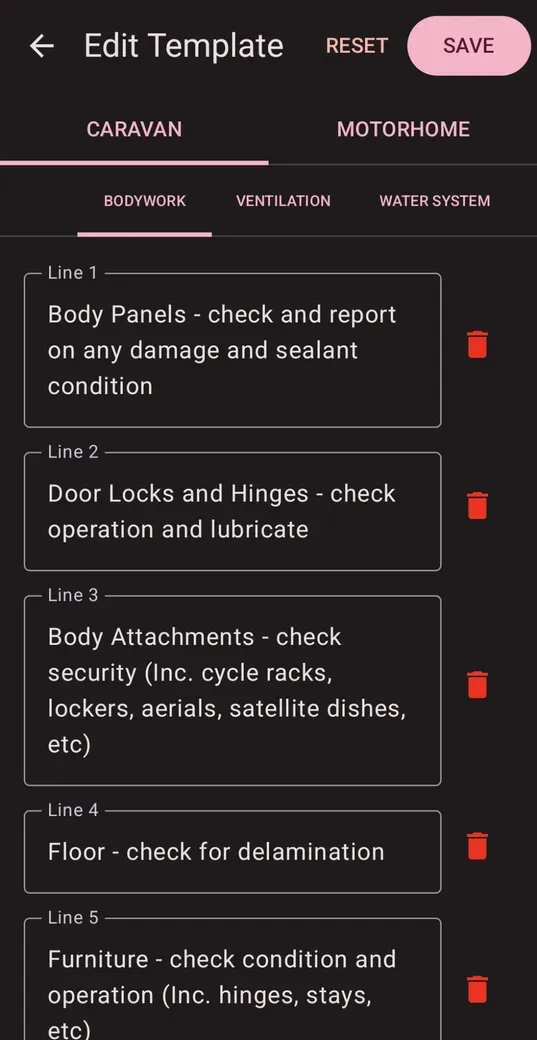
Customizable Service Sheets
Tailor service sheets and invoices to match your branding and specific service requirements.

Digitises your Paperwork
Digitise your paperwork and current services and produce professional looking pdf service sheets, fault sheets for engineers and Invoices for repair work.
Gallery
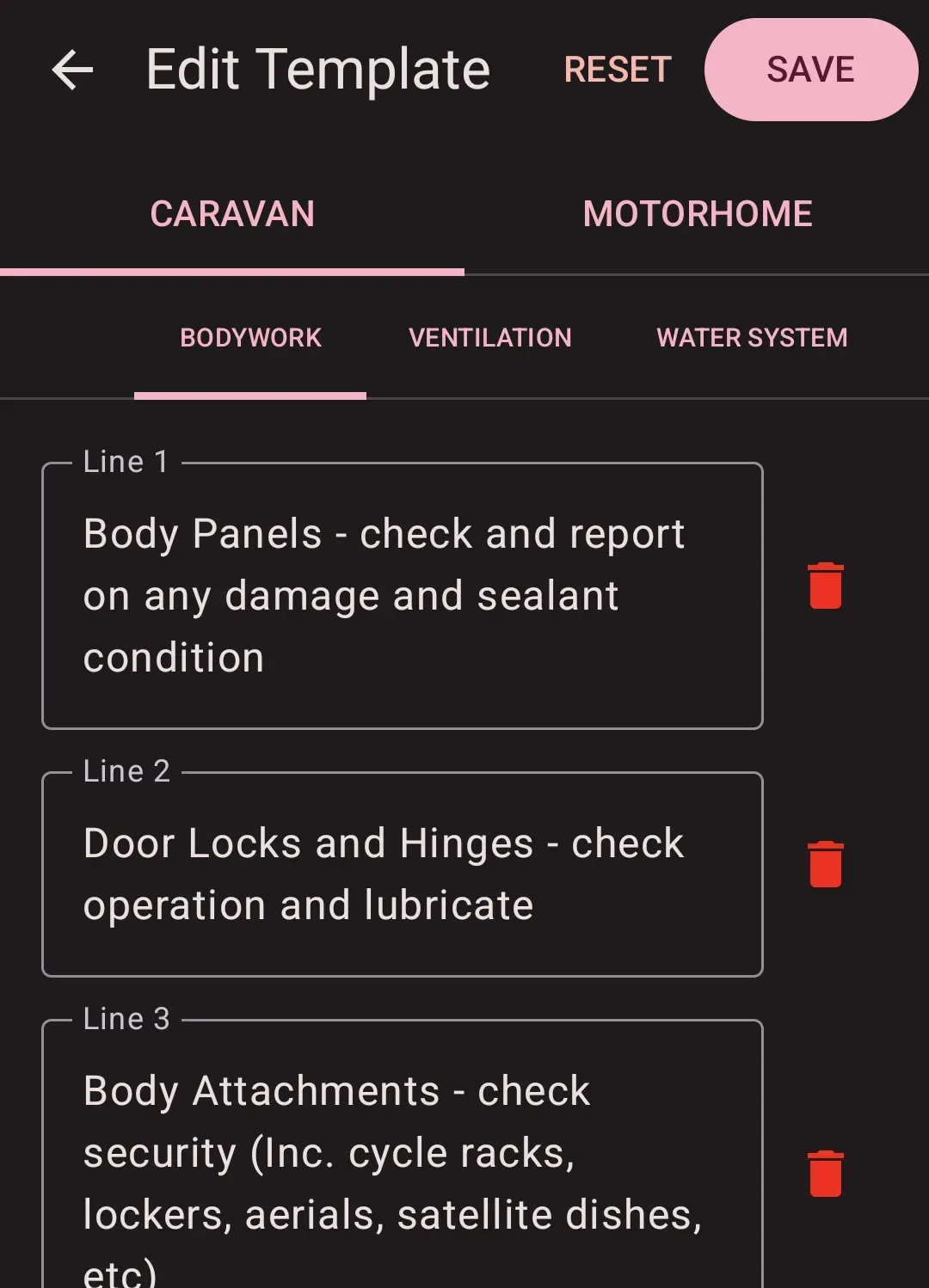
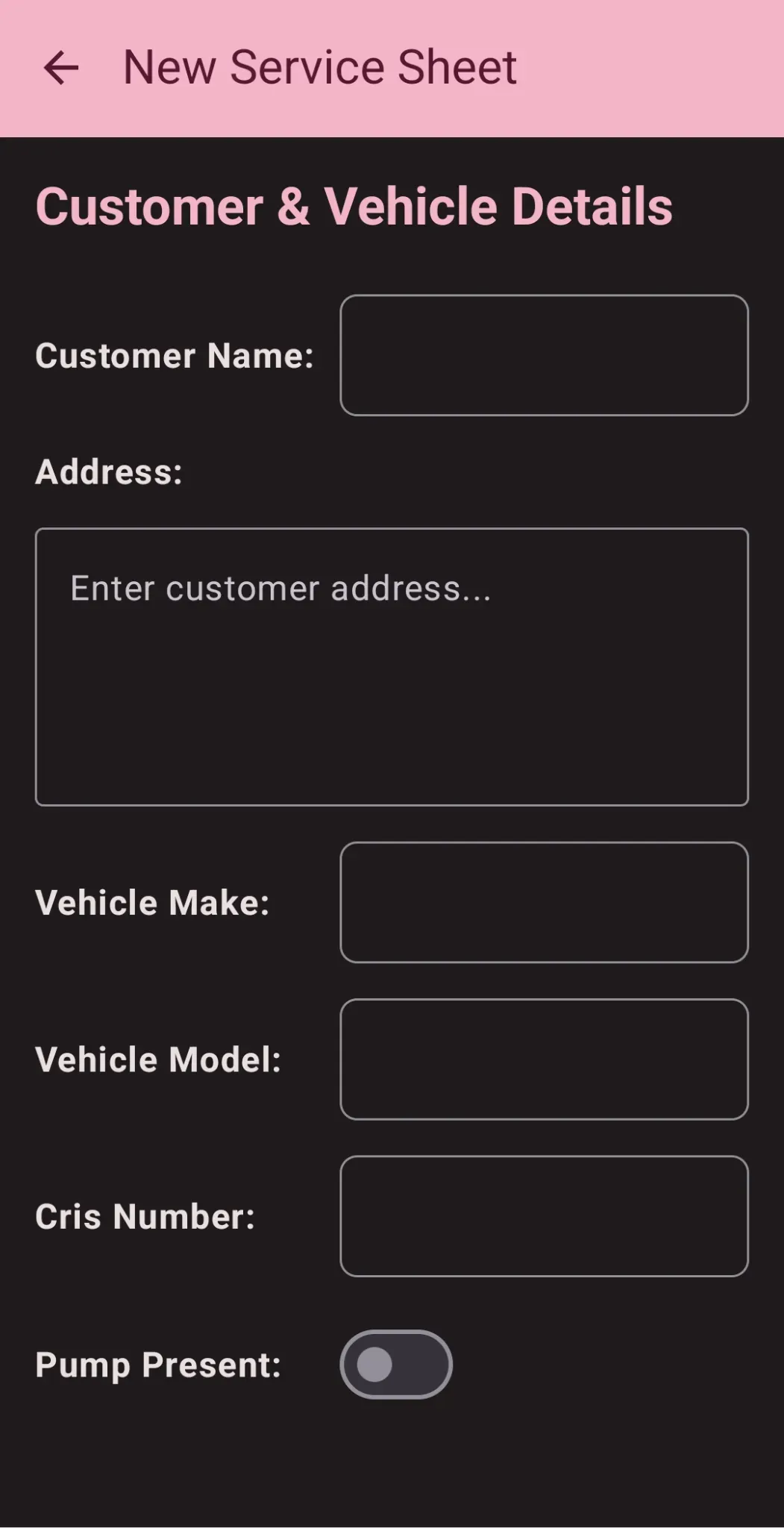
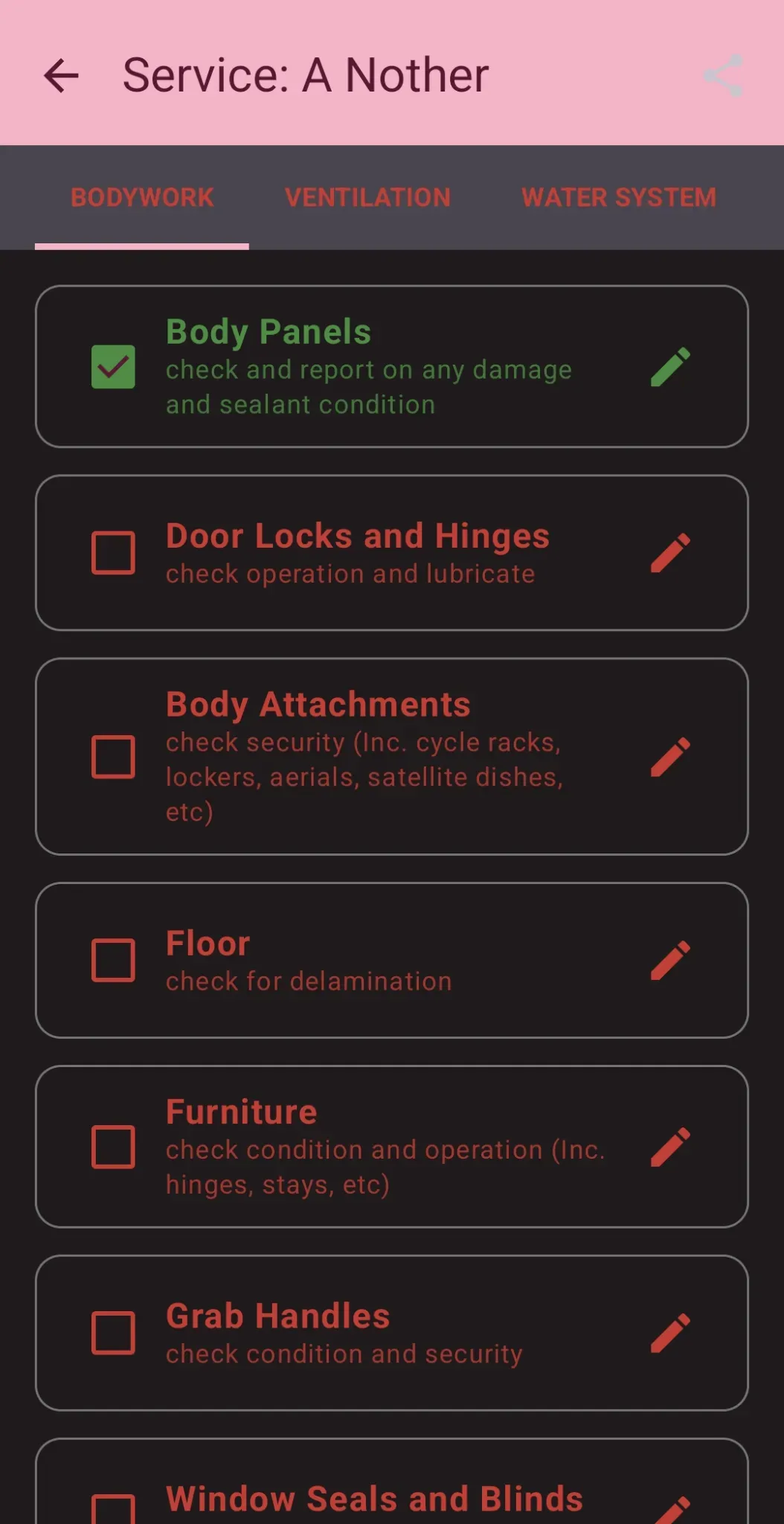
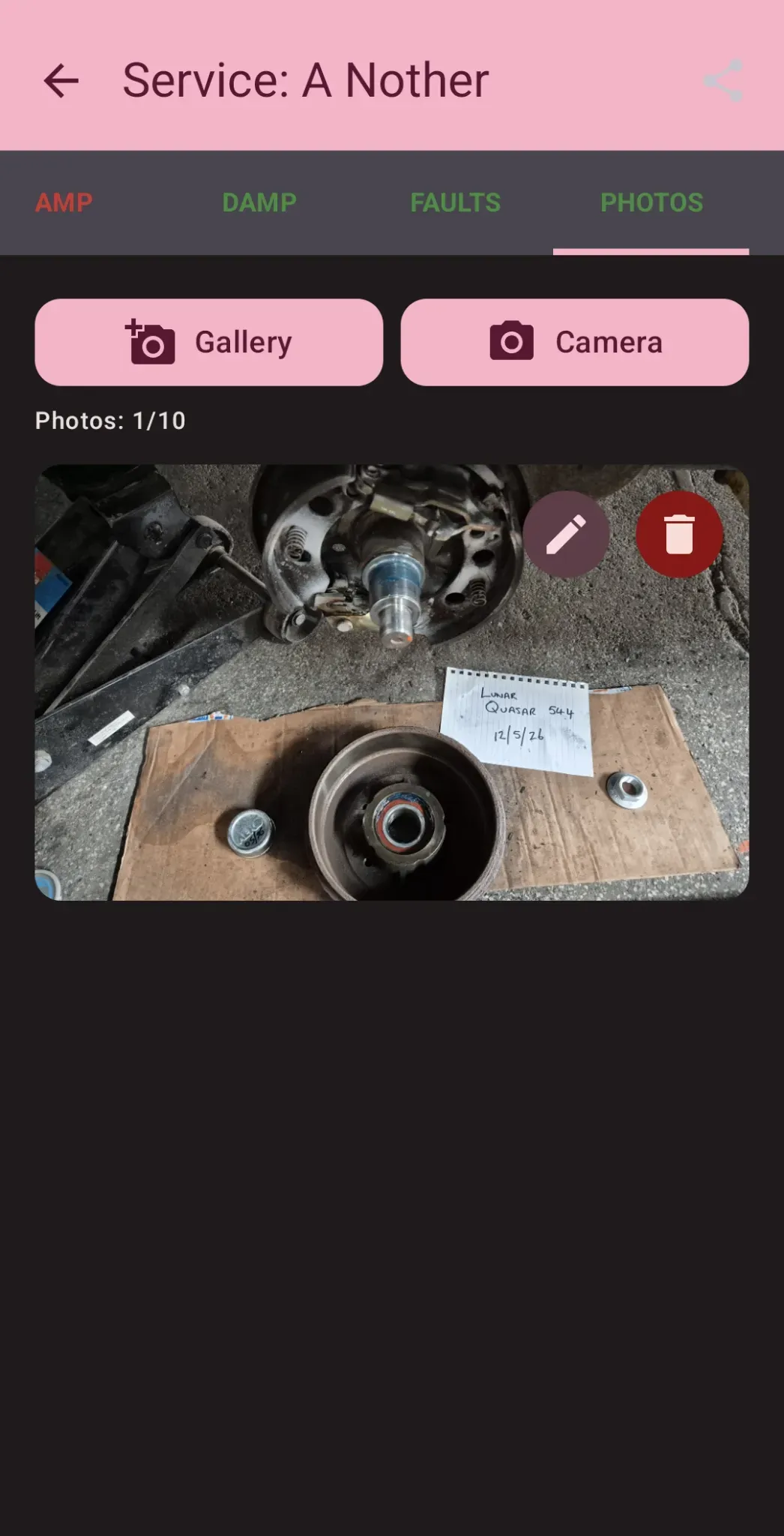
Digitize your service, amplify your success.
Start transforming your workflow today!
Frequently Asked Questions
What is the primary purpose of the Service App?
The app is designed to help engineers completely digitize the caravan and motorhome servicing process. It allows you to create detailed digital inspection reports, log component conditions, measure tyre profiles, perform damp tests, outline defects, record appliance details, and generate professional customer documents without relying on paper checklists.
Do I need an internet connection to use the app in the workshop or on-site?
No. The app operates completely offline, so you can fill out checklists, log readings, and view customer records in areas without mobile signal or Wi-Fi. An internet connection is only needed if you choose to email or share PDFs directly from your device.
How do I add my company name, contact details, and logo to reports?
Go to the Settings page from the main menu. Enter your business details, currency symbol, and localised VAT rate, then tap Save Branding & Region Details. To add your branding image, tap the Upload Logo button and select a file from your device.
What is the "Header BG" button in Settings?
This allows you to change the top background banner color of your in-app layout. You can select a color or upload a custom image to make the app's interface match your business's visual style. Tap Default Amber or Reset All to change it back.
What is the difference between a Caravan and a Motorhome service sheet?
Caravan and motorhome structures differ slightly. The app features dedicated workflows for both vehicle types, ensuring that specific sections (like the underbody check unique to trailers vs. drive chassis elements for motorized vehicles) are accurately cataloged.
How do the check sheets work during an inspection?
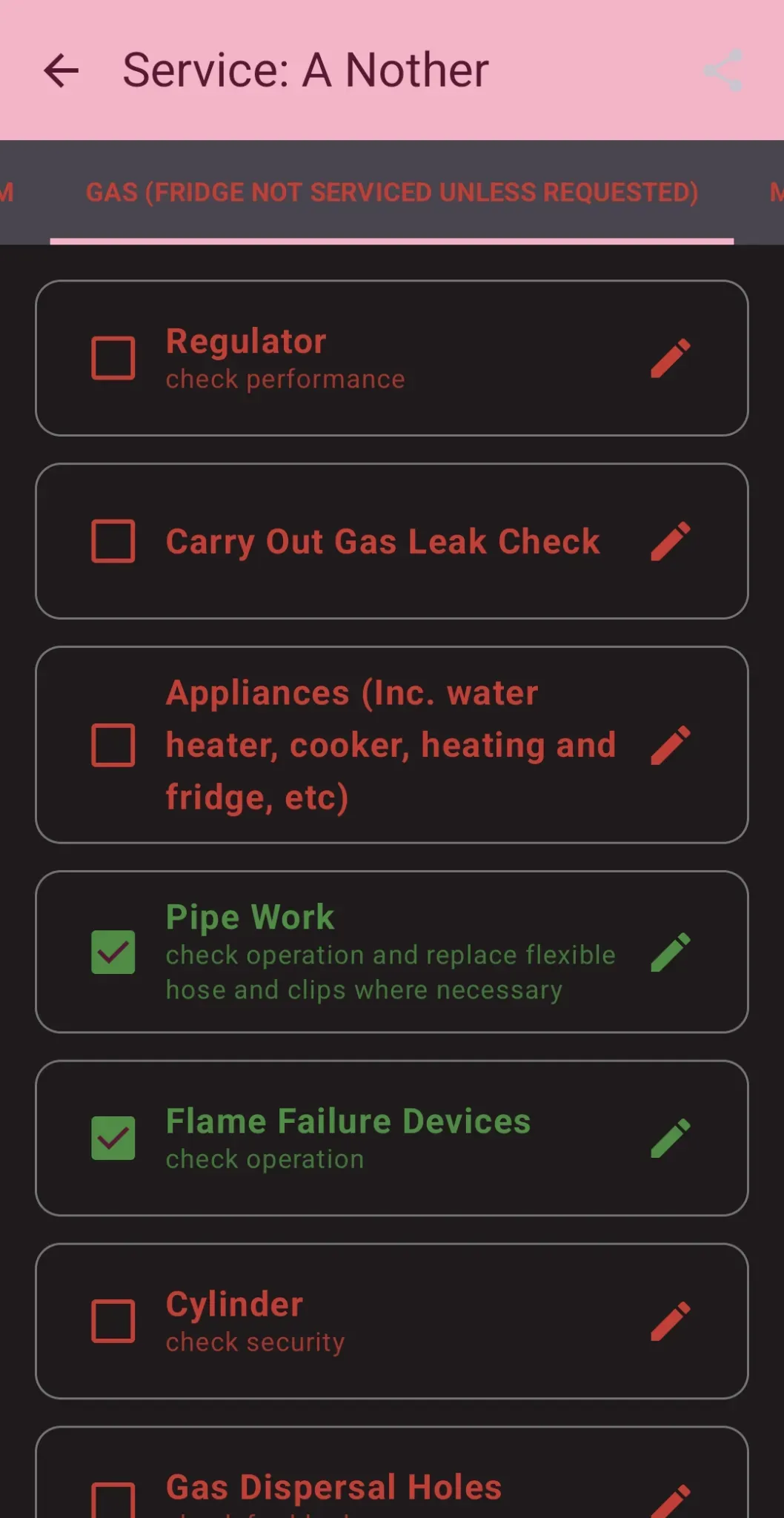
As you complete tasks on a vehicle, tap the checkbox next to each line item. The item will turn green, giving you an instant visual confirmation of your progress.
How do I record a fault or problem during an inspection?
Tap the pencil icon next to any service item to open the Notes / Faults text box. Any notes you type here are flagged by the system as a vehicle fault with each separate line becoming an individual fault. They will automatically be transferred to the final "Faults" summary and invoicing menu.
Can I log service sheets retroactively for previous dates?
Yes! When creating a new caravan or motorhome service sheet, tapping the Service Date field opens a calendar picker. This feature allows you to backdate reports so you can digitize historical physical paperwork seamlessly.
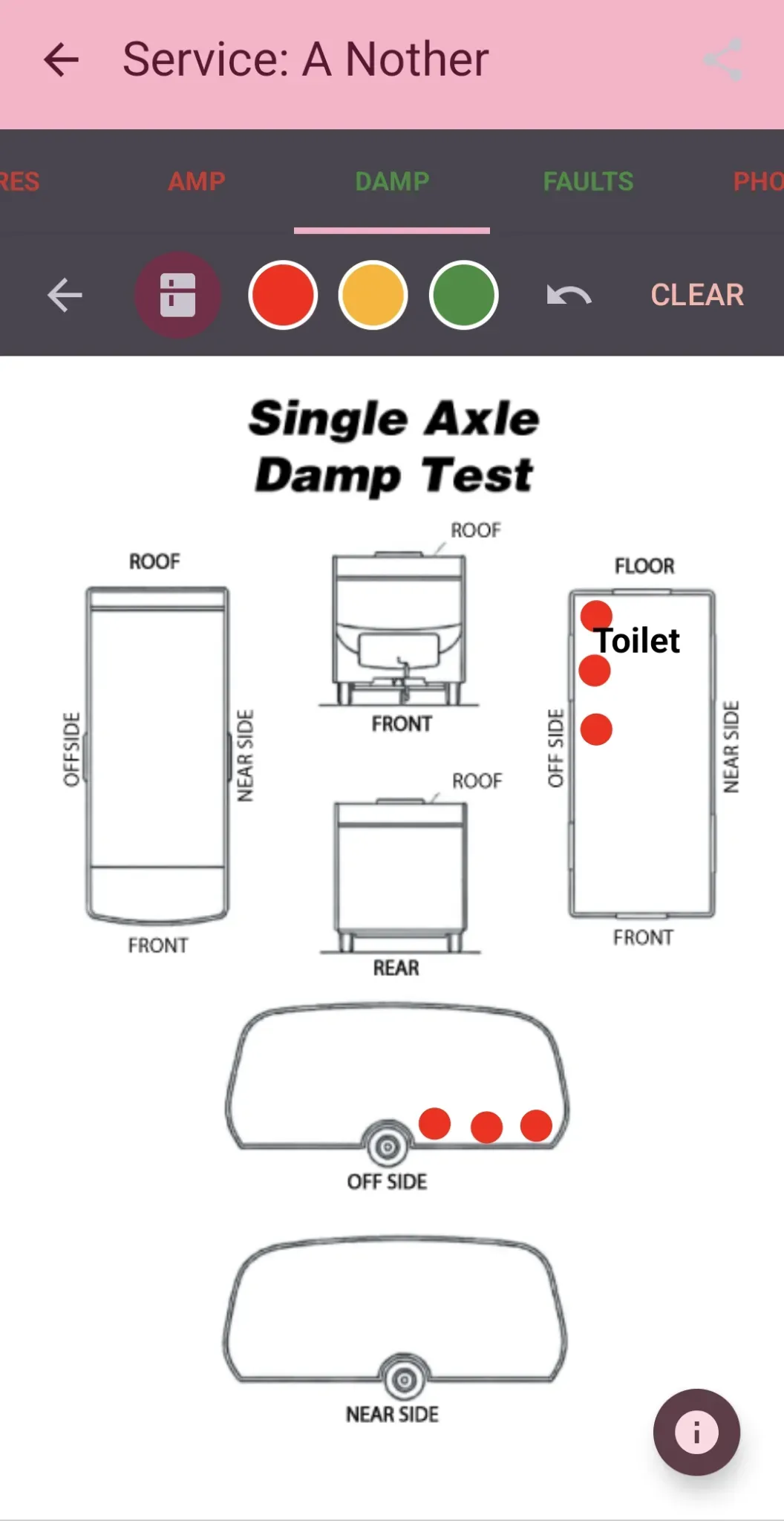
When navigating to the Damp section, select either Single Axle or Twin Axle depending on the vehicle, Motorhome is set as default on the Motorhome service sheet?
1. Tap the **Red Circle** button at the top to activate the marker tool.
2. Tap anywhere on the vehicle layout schematic to drop a moisture indicator dot.
3. Tap the **Amber Circle** button at the top to activate the marker tool.
4. Tap the **Green Circle** button at the top to activate the marker tool.
5. Tap the **Appliance** symbol to select built-in location labels (e.g., *Shower*, *Pump*, *Window*). Drag the label next to your red marker dots to precisely explain where the damp issue is located.
How does the Faults tab map out discovered issues?
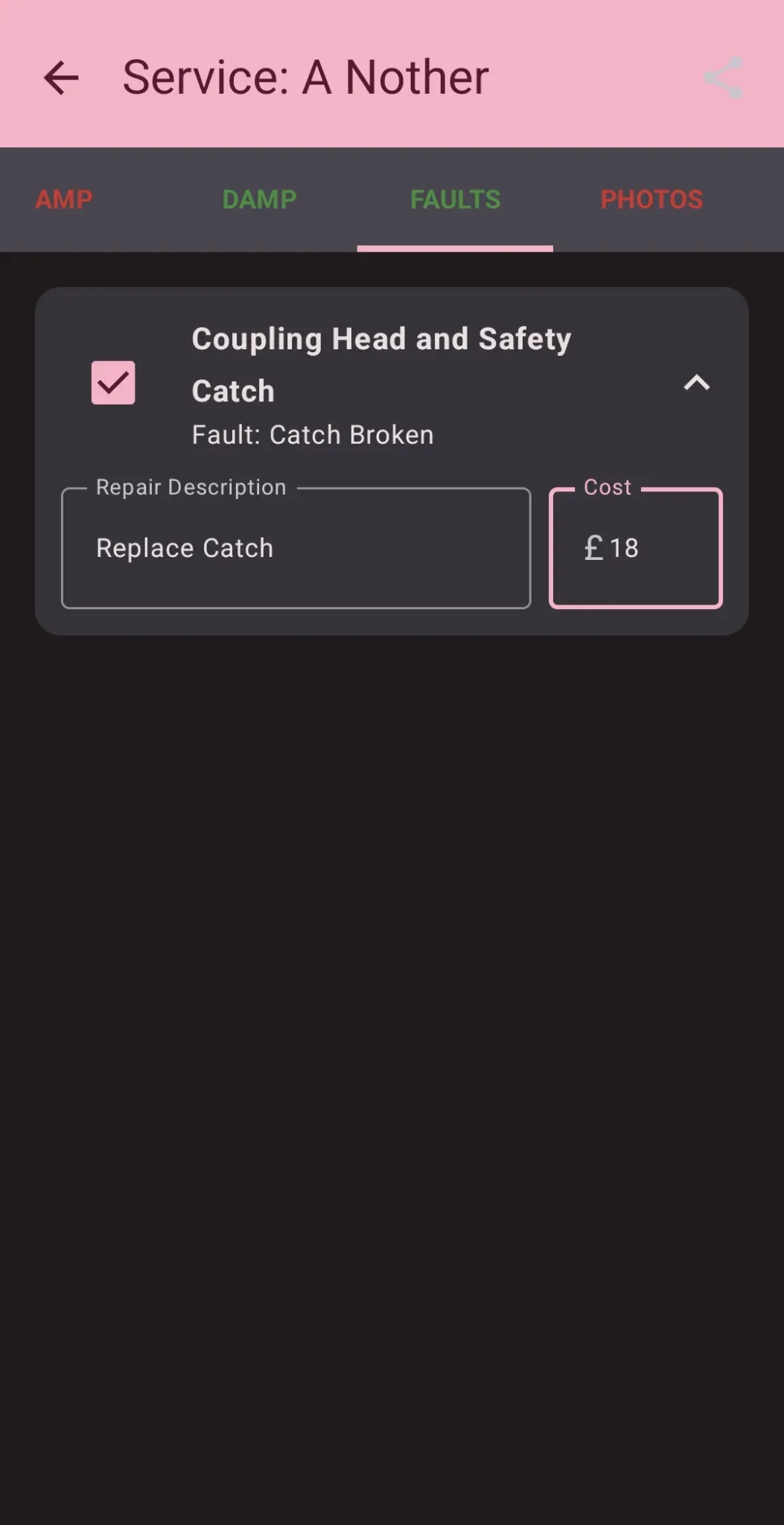
Any custom note added to a line item throughout the inspection tabs is automatically extracted and populated into the Faults tab. This creates a centralized view of all problems discovered during the service.
How do I turn a recorded fault into a billable invoice item?
Within the Faults tab, you can expand any listed defect to input a custom Repair Description and a Cost. By checking the accompanying box, you mark it as an invoiceable item, which instructs the app to push that specific pricing data directly to the customer's final invoice.
Why does my logo layout look strange on the generated documents?
For optimal document presentation, it is highly recommended to upload a corporate logo file that has a transparent background (such as a .png file). This ensures the logo blends natively into the headers of your service sheets and invoices.
Can I customize the line items on the default inspection checklist?
Yes. Under the System Recovery block in settings, select Edit Default Service Sheet. From here, you can choose either the Caravan or Motorhome template and add new checklist items, remove redundant options, or insert custom data fields tailored to your operational methods.
How do I send a completed report or invoice to a client?
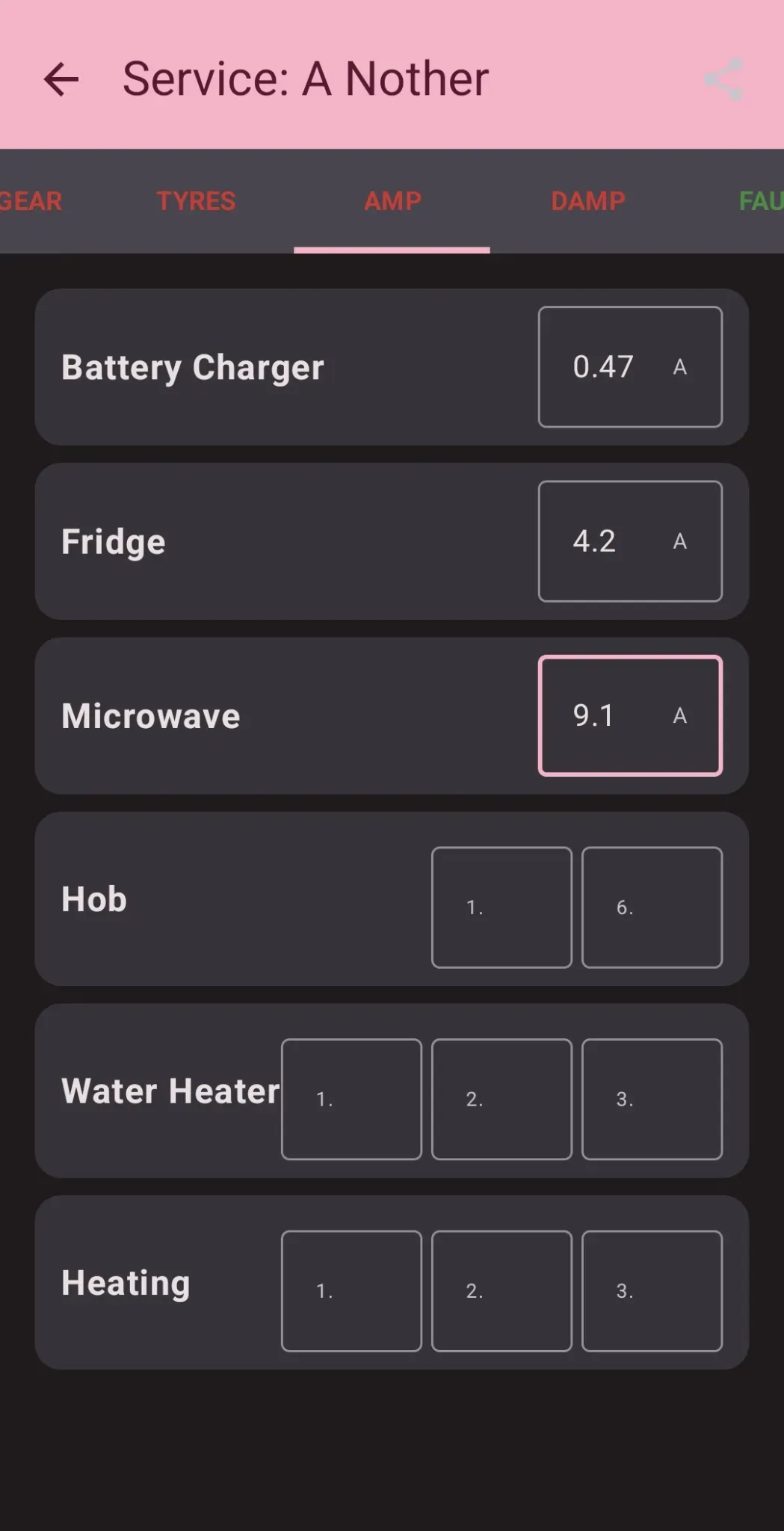
Tap the Print or Share button on the home screen, select the relevant service record, and configure your output options. You can choose whether to include amp readings, damp tests, photos, or print only the discovered faults. Activating the Invoice Customer toggle formats the export as a billing invoice. Tapping Generate & Share PDF produces the document and triggers your device's native sharing tray (allowing you to send via WhatsApp, Email, etc.).
What are the different options under Backup & Restore (.bak)?
The app offers flexible utility modes for file management:
Share: Exports your current backup file to another device or email address.
Save to Device: Creates an instantaneous local copy inside your designated file directory.
Import .bak File: Completely overwrites your local active records with an old backup dataset.
Merge .bak File: Appends historical backup items into your current active local database while cleanly removing duplicate entry records.
Where is my data saved, and will an app reinstall delete it?
The application saves its background data inside an isolated file storage tree specified in your settings. Because this directory sits independently from the core program package, your .bak logs and generated PDF archives remain completely protected and unaffected even if the application is uninstalled or updated.